

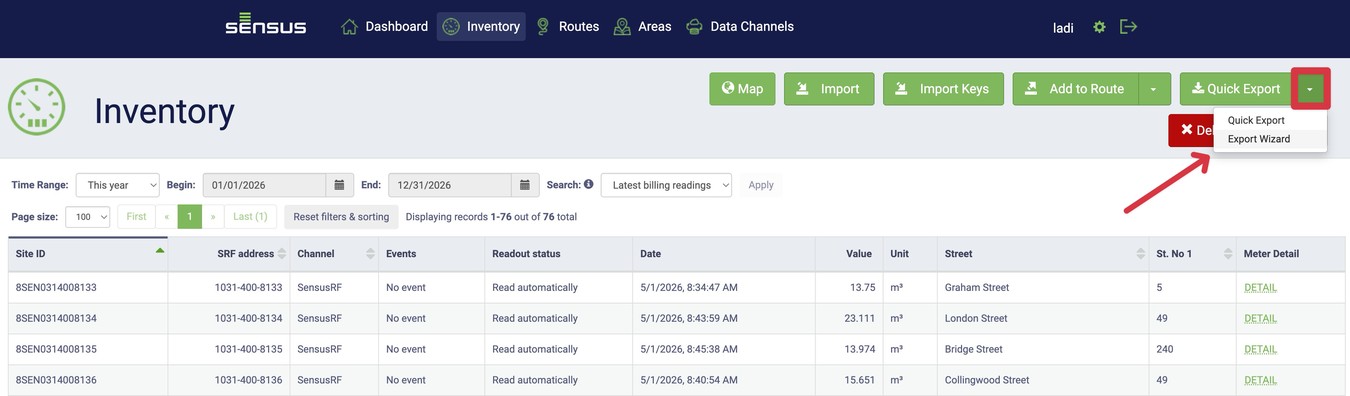
Quick Export
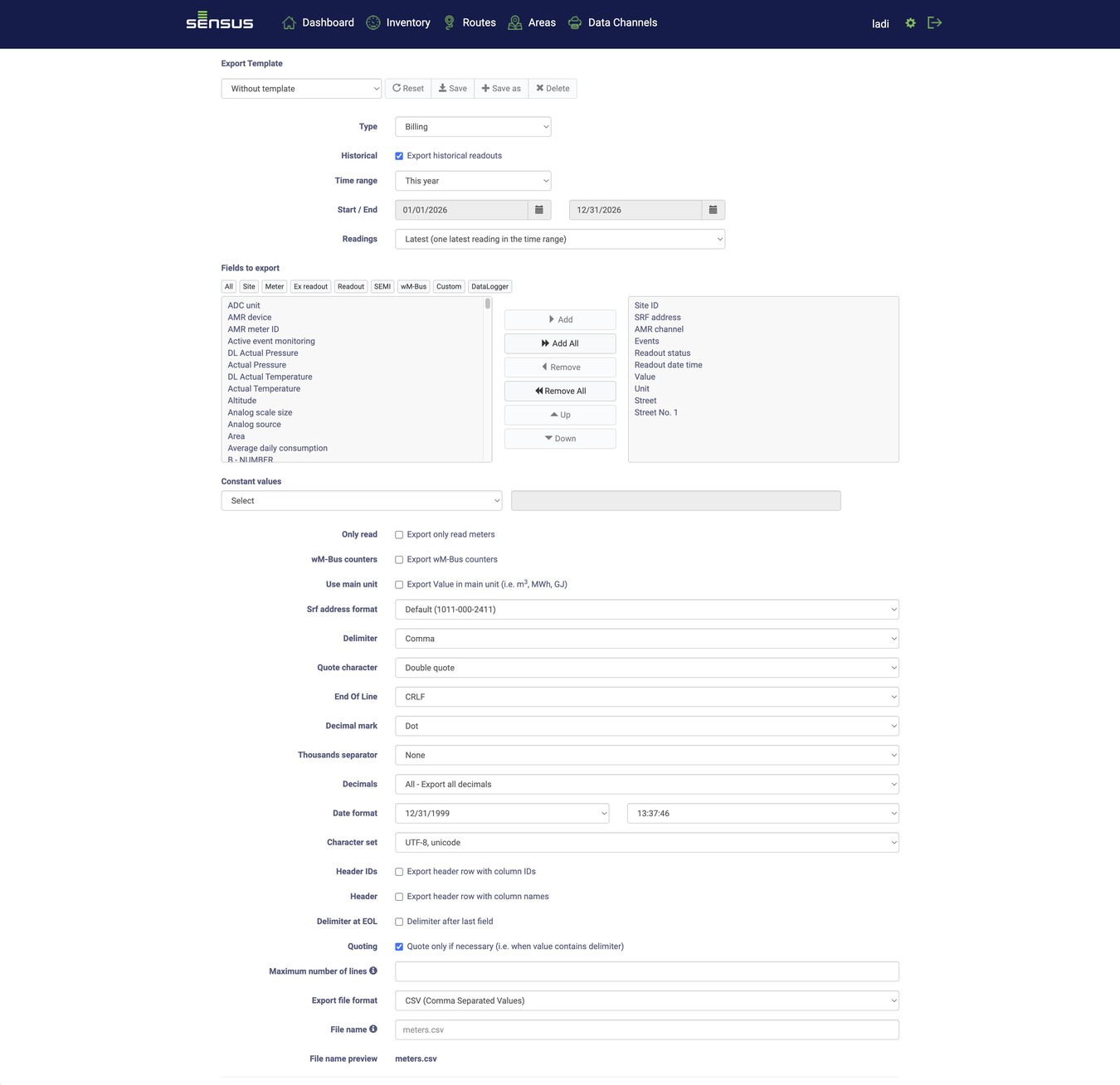
Select Export Wizard to access the view.
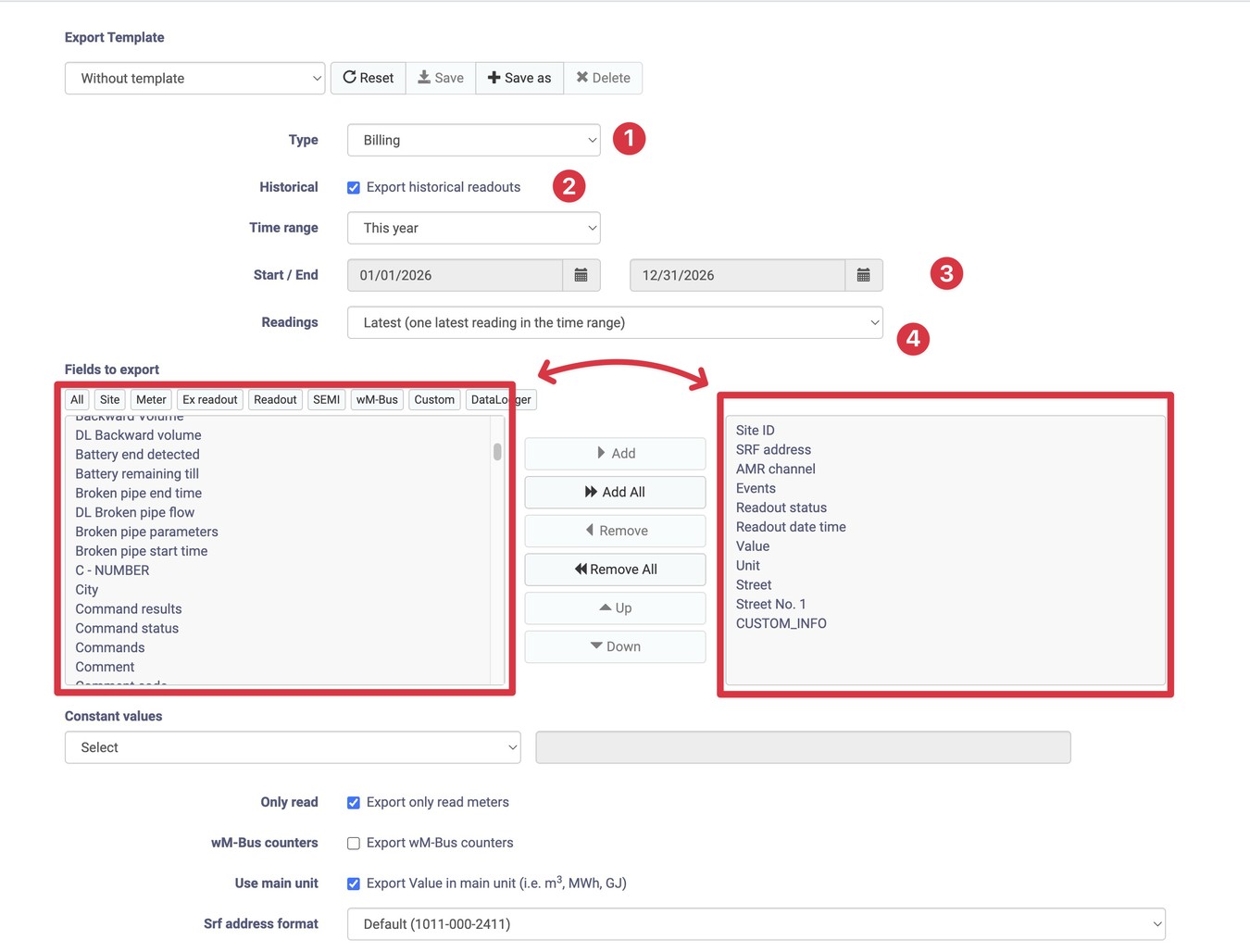
It is set up similarly to the Export Routes view, but the downloaded meters are filtered in Inventory view.
Historical readouts are prepopulated based on the Inventory time range. The fields exported are pre-filled based on the selected Inventory table columns.
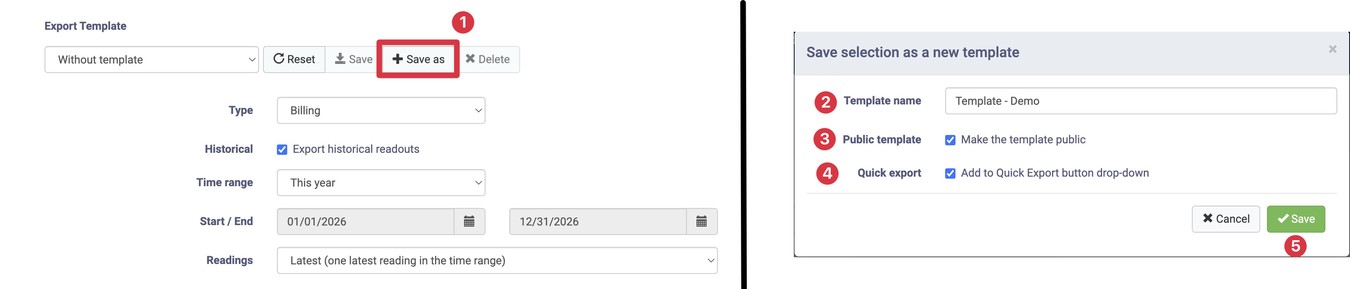
Add a new template using the quick export option.
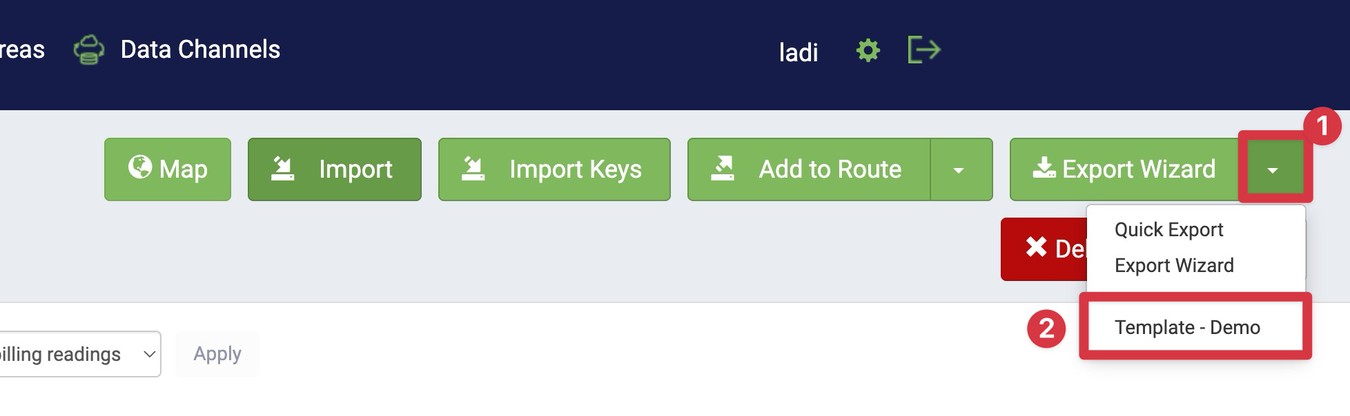
Select the template from the dropdown menu. When historical readouts are not checked in the template, the Inventory time range is used.
Another way to export data from inventory is to select Quick Export from the dropdown menu.
When Quick Export is selected, server will collect data filtered by user and export them as a .xlsx file.
This export works on a ‘what you see is what you get’ principle. It will take all the filtered data, selected columns, and time range settings and export them just as they are shown in the Inventory menu.
The drop-down displays the most frequent selection as the default value.
That means if Quick Export was selected last, the button will change to Quick Export and to access the Export Wizard you must make a selection from the drop-down menu.
Export Inventory Wizard
Creating Custom Template